
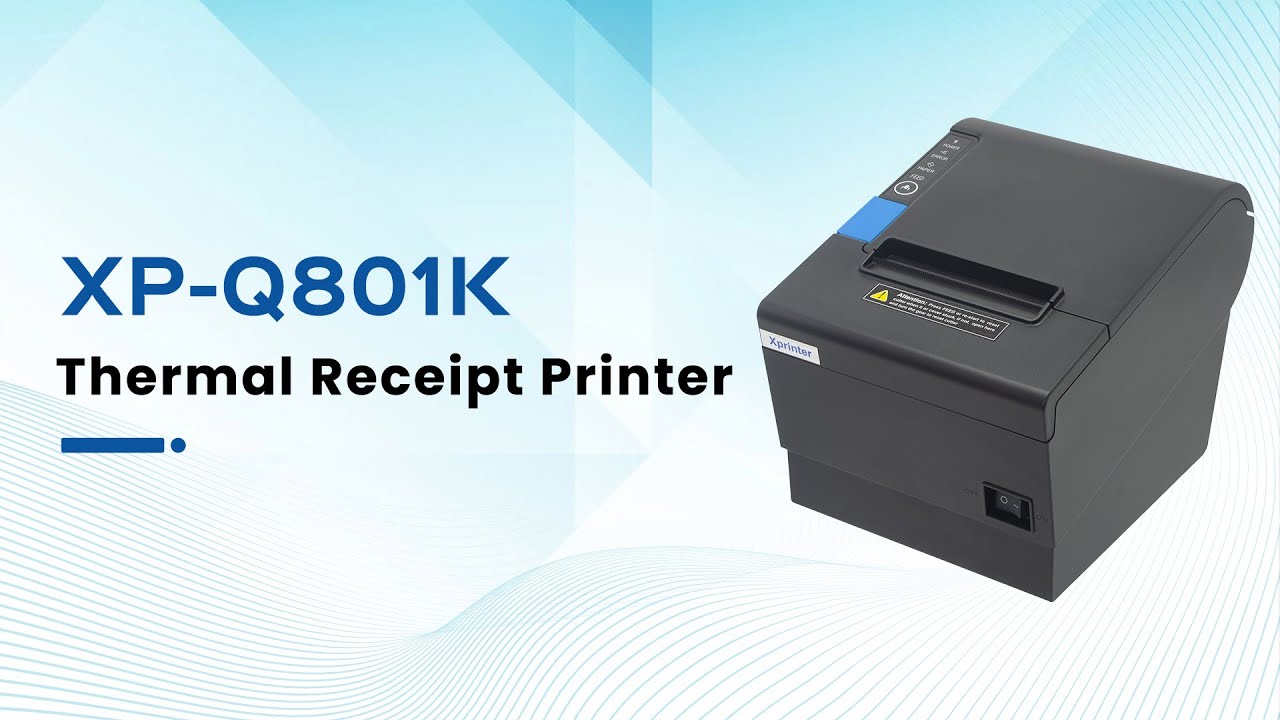
How to Troubleshoot Common 80mm Receipt Printer Printing Issues
Receipt printers are essential for completing sales transactions in retail stores, restaurants, supermarkets, and other businesses. When a printer stops working correctly, even a minor issue can slow down checkout operations and affect customer service. Understanding common printing problems can help employees identify the cause and restore normal operation more quickly.
An 80mm Receipt Printer can experience issues related to paper loading, connectivity, drivers, print quality, or POS configuration. Many of these problems can be resolved through a few basic checks before professional technical support is required. A structured troubleshooting process can save time and reduce unnecessary interruptions during daily operations.
Check Whether the Printer Is Powered On
The first troubleshooting step is to confirm that the printer is receiving power. Check the power cable, adapter, and electrical connection.
If the printer has an indicator light or control panel, check whether it shows signs of normal operation. If there is no response, try a known working power outlet and make sure the power connection is firmly secured.
Avoid repeatedly using a damaged power cable or adapter, as this can create additional equipment problems.
Inspect the Thermal Paper
Incorrectly loaded or empty paper is one of the simplest causes of printing failure. Open the printer compartment and check whether the paper roll is installed correctly.
Make sure the thermal paper is positioned in the correct direction. Thermal paper generally prints on only one coated side, so incorrect orientation can result in blank receipts.
Also check whether the roll is properly aligned and can move freely through the paper path.
Check for Paper Jams
Paper jams can prevent the printer from feeding or printing receipts correctly. If the paper is stuck, turn off the printer and carefully remove the jammed material according to the manufacturer’s instructions.
Avoid pulling aggressively, as this could damage internal components. After clearing the paper path, reload a fresh roll and perform a test print.
Examine Print Quality
Faded, incomplete, or uneven receipts may indicate several possible problems. Start by checking the quality and type of thermal paper being used.
Old, damaged, or incompatible paper can affect print clarity. If the paper appears suitable, inspect the printer’s print head and clean it according to the manufacturer’s recommended procedure.
Regular cleaning can help maintain consistent output, especially in businesses that print receipts frequently.
Verify the Printer Connection
A printer may appear functional but still fail to receive print jobs because of a connection problem. Check the cable or wireless connection between the printer and POS device.
For USB connections, confirm that the cable is securely connected at both ends. For Ethernet setups, check the network cable and relevant network configuration. If Bluetooth is being used, verify that the printer remains paired with the appropriate device.
A loose or unstable connection can cause intermittent printing problems.
Check the Printer Driver
The operating system needs a compatible driver to communicate correctly with many receipt printers. If the printer is not recognized or print jobs remain stuck, check whether the appropriate driver is installed.
An outdated, incorrect, or incompatible driver may prevent the printer from functioning properly. Confirm that the driver matches the printer model and operating system before reinstalling or updating it.
Review POS Printer Settings
Sometimes the printer itself is working correctly, but the POS software is configured incorrectly. Open the printer settings within the POS application and confirm that the correct device is selected.
Also review settings such as paper width, receipt formatting, and print preferences. If multiple printers are connected, make sure the intended receipt printer is assigned to the correct checkout station.
Restart the Printer and POS Device
A simple restart can resolve temporary communication problems. Turn off the receipt printer and the connected POS device, wait briefly, and then restart them.
Once both systems are fully operational, process a test transaction. If the printer works after restarting, the issue may have been caused by a temporary software or communication error.
Check the Print Queue
If print jobs are being sent but receipts are not appearing, check the operating system’s printer queue. A stalled or failed job may prevent newer transactions from printing.
Clear unnecessary or stuck jobs and then send a new test print. If the problem continues, restarting the print service or POS application may help restore communication.
Troubleshoot Blank Receipts
A completely blank receipt often points to an incorrectly installed thermal paper roll. Remove the roll and reinstall it in the correct orientation.
If a correctly installed roll still produces blank output, test with a new compatible thermal paper roll. Persistent blank printing may indicate an issue with the print head or another internal component that requires further inspection.
Address Misaligned or Incorrectly Formatted Receipts
If text is cut off, shifted, or displayed incorrectly, review the receipt configuration in the POS software. The paper width should match the printer’s supported format.
Check the receipt template, margins, character settings, and other formatting options. Updating the POS configuration can often resolve layout problems without requiring hardware changes.
When to Seek Professional Support
Basic troubleshooting can resolve many common issues, but some problems require technical assistance. Consider contacting qualified support if:
- The printer repeatedly loses power.
- The print head appears damaged.
- Mechanical components are making unusual noises.
- Paper jams continue after proper loading.
- The printer is not detected after connection and driver checks.
- Print quality remains poor after using compatible paper and cleaning the printer.
- The device shows persistent error indicators.
Professional assistance can help identify hardware faults without risking further damage through unnecessary repairs.
Prevent Future Printing Problems
Regular maintenance can reduce the likelihood of recurring printer issues. Businesses should use compatible thermal paper, keep the printer clean, check connections periodically, and train employees on proper paper replacement.
It is also useful to keep basic troubleshooting instructions accessible near the checkout area. Employees can then handle simple issues quickly instead of waiting for technical support.
Conclusion
Troubleshooting common 80mm receipt printer problems usually starts with a few basic checks, including power, paper, connections, drivers, and POS settings. Many printing issues can be resolved quickly when employees follow a systematic process.
For more persistent problems, checking the manufacturer’s documentation or contacting qualified technical support is the safer approach. With proper maintenance, compatible supplies, and correct POS configuration, businesses can keep receipt printing reliable and minimize disruptions during daily transactions.


